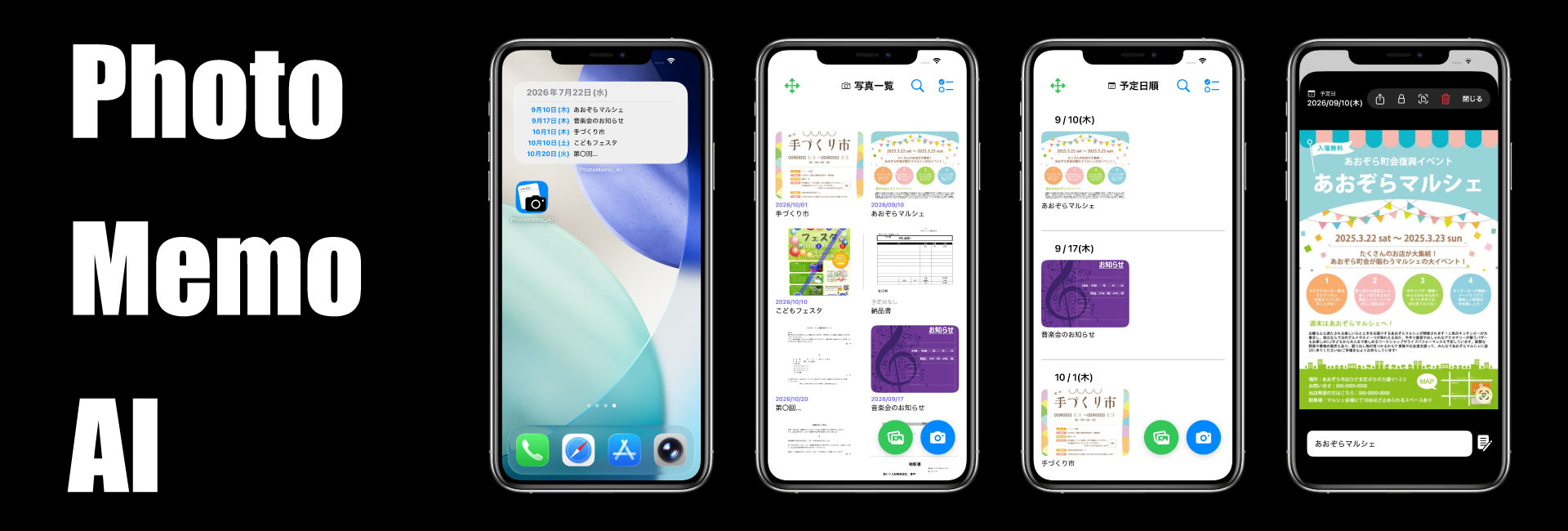
-
Home > PhotoMemo_AI 
Feature Introduction
◇Images are not saved in "Photos (Camera Roll)"
Images are saved only within the app. This eliminates the problem of images getting buried among other photos and causing you to wonder, "Where did that image go?" or "I don't want to back up this image..."
◇Sort by due date
You can save your schedule's planned dates and short notes. You can sort them by planned date.You can also view them anytime using the widget.
◇Compatible with "Apple Intelligence"
On compatible devices, Apple Intelligence automatically retrieves the scheduled date and a short memo.
◇Save all the text in the image as tags
The OCR function saves all the text on a document. Combined with the search function, it can find even words you only vaguely remember, such as "I think it was a document from school? It said something like XX" or "Hmm, what was that thing in XX town called...?"
◇Supports iPhone's sharing function
In addition to "taking a photo with the camera" and "selecting from photos (camera roll)," this app also supports iPhone's sharing function. Images sent via mail, documents sent from school (PDF compatible), etc., can be sent to this app using the sharing function and registered immediately. You can also send images via email or LINE from this app, or print them using a printer.
Instructions for use
Photo list
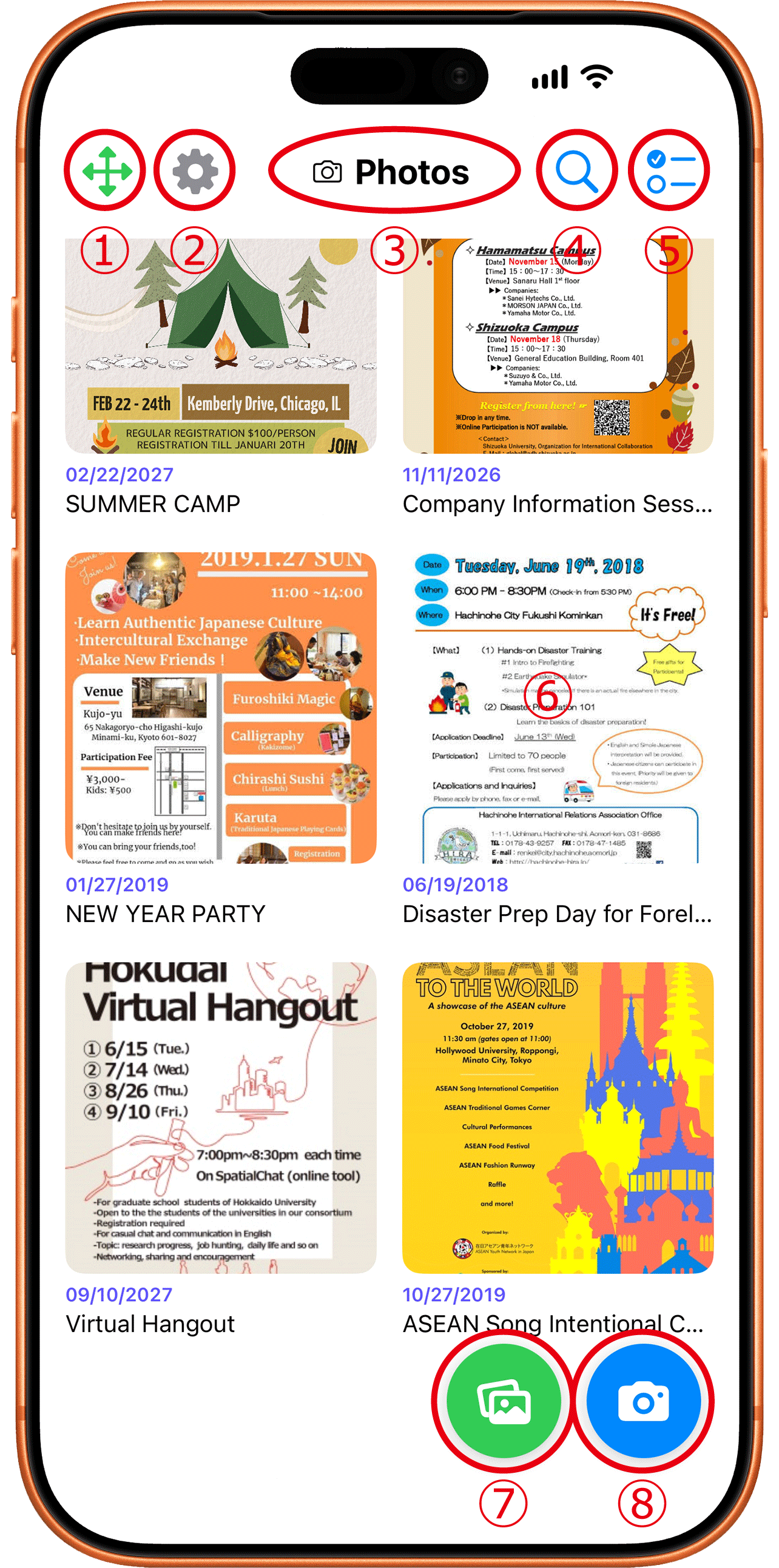
①Move button... Allows you to rearrange the images.
②Access the settings screen.
③Switch between "Photo List" and "By Due Date".
④Search button... You can search using "search tags".
⑤Select button... After selecting multiple items, you can "share" or "delete".
⑥Touching an image will display "Details," and long-pressing (holding down) it will bring up a menu.
⑦Select the images you want to import from "Photos (Camera Roll)".
⑧Take a picture with the camera.
Sorted by due date
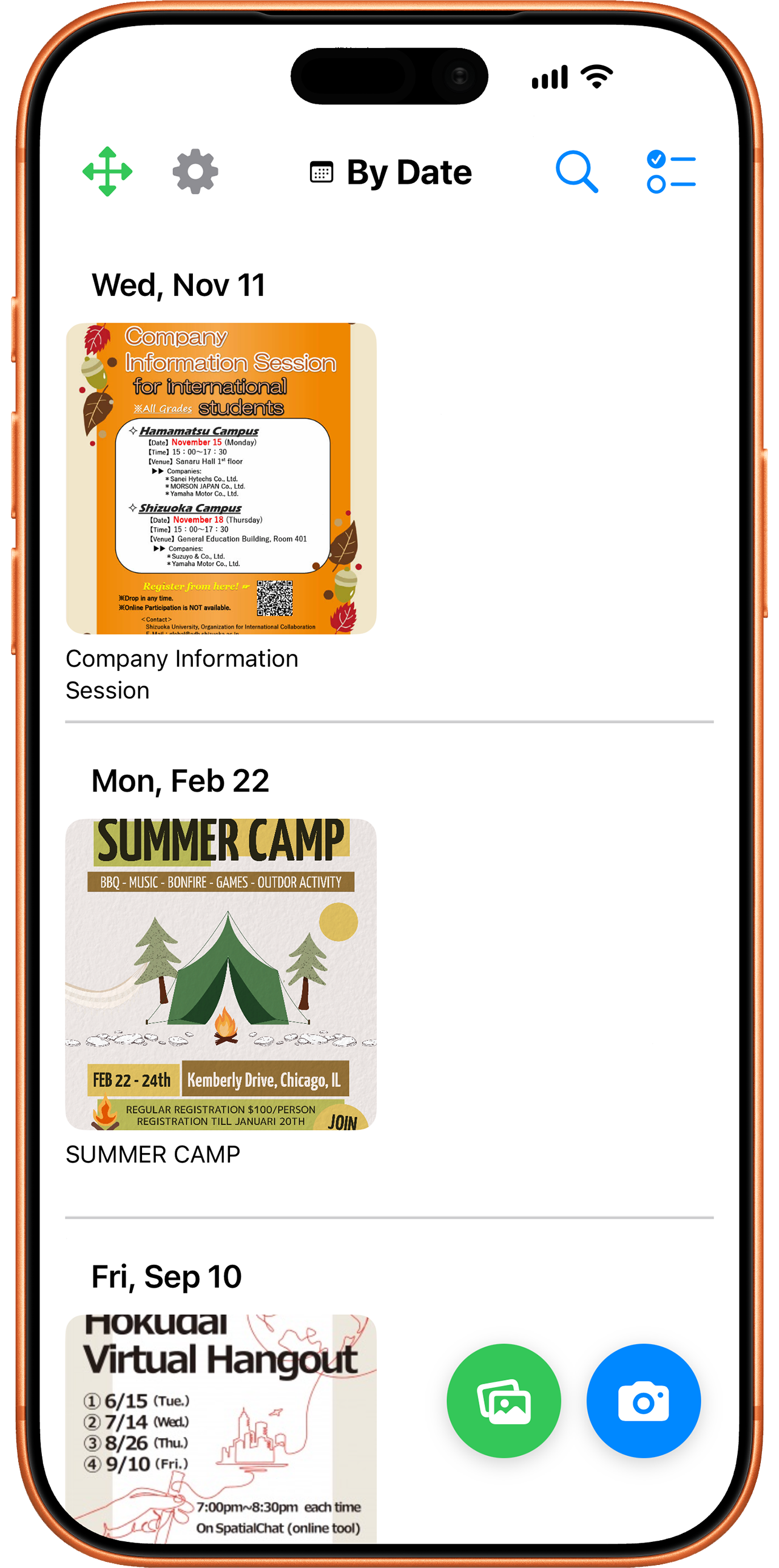
The operation method is the same as for the "Photos".
menu
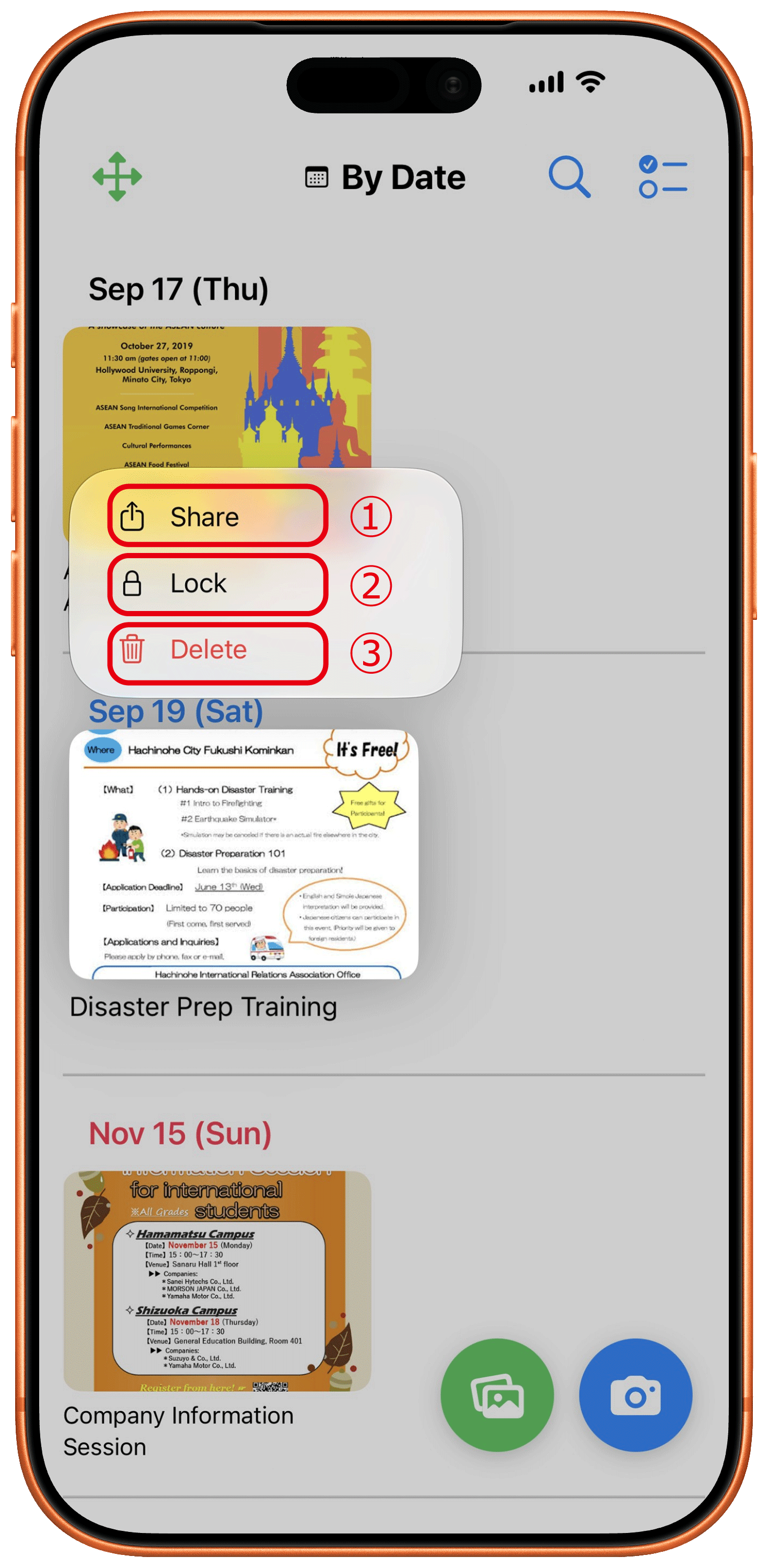
①Use the iPhone's sharing function. You can transfer images to other apps.
②Lock the image to prevent it from being deleted.
③Delete the image.
Detailed description
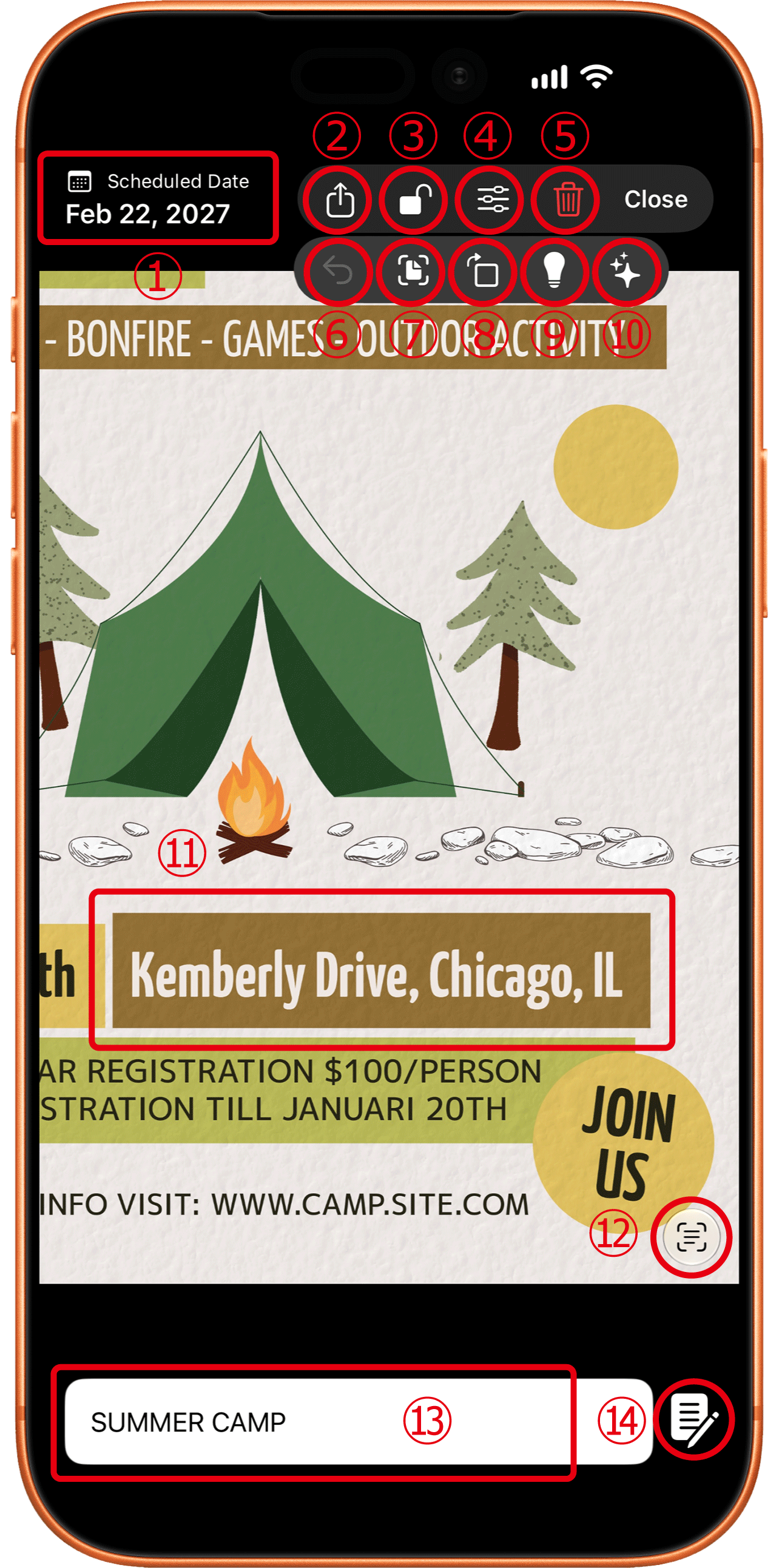
①Set the scheduled date.
②Use the iPhone's sharing function. You can transfer images to other apps.
③Lock the image to prevent it from being deleted.
④Open the image editing menu (⑥-⑩).
⑤Delete the image.
⑥Revert the image editing to its original state.
⑦Crop the image into a square.
⑧ Rotate 90° clockwise.
⑨ You can adjust the brightness, contrast, and saturation.
⑩ Use Apple Intelligence to automatically enter the scheduled date and notes.
⑪ You can resize and move images. You can also long-press text to select it, and tapping the selected text or "Copy" will save the text to a short memo.
⑫ The OCR will be displayed.
⑬ Enter your memo.
⑭ You can check and edit "search tags".
Settings screen
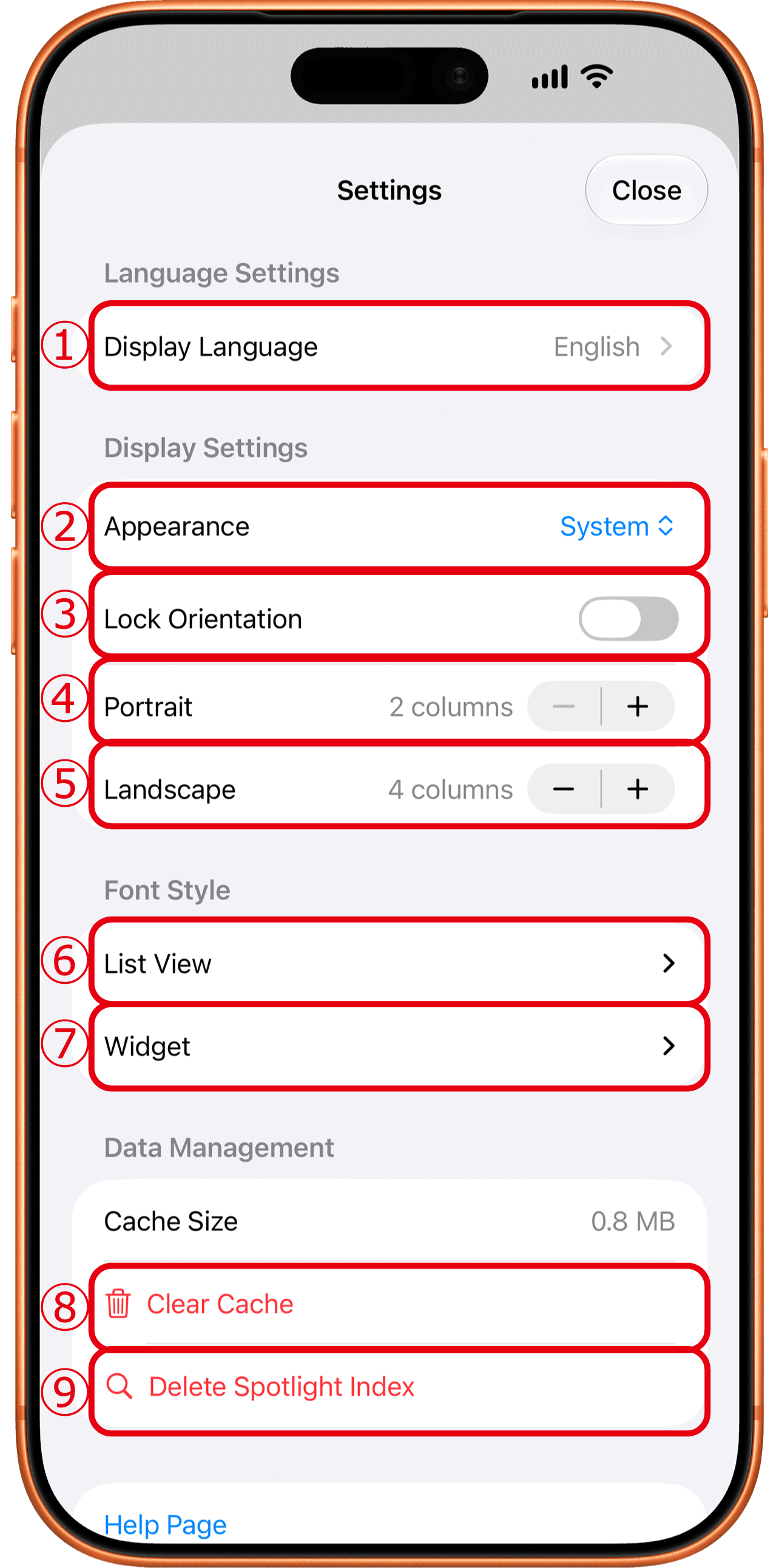
① Change the display language.
② Appearance settings (Automatic, Light, Dark)
③ Fix the screen orientation to either portrait or landscape.
④ Change the number of images displayed horizontally (2 to 5)
⑤ Change the number of images displayed horizontally (2 to 5)
⑥ Change font size, display position, etc.
⑦ Improved font size.
⑧ You can delete the cache if you're concerned about it.
⑨ Remove the Spotlight index, and it will no longer appear in Spotlight search results.
Widgets
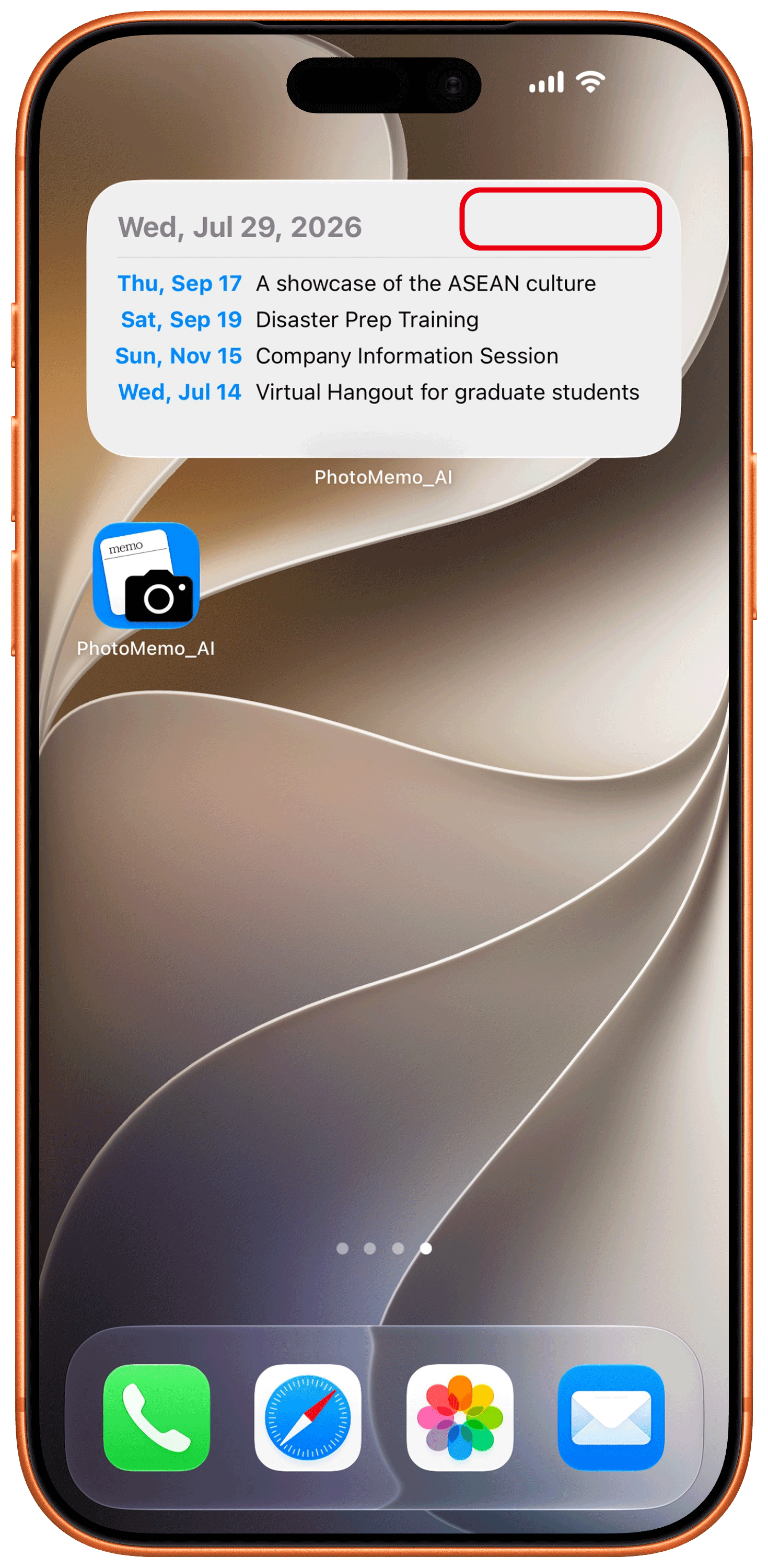
The events are displayed in order of due date. You will also receive notifications the day before and on the day of your due date.